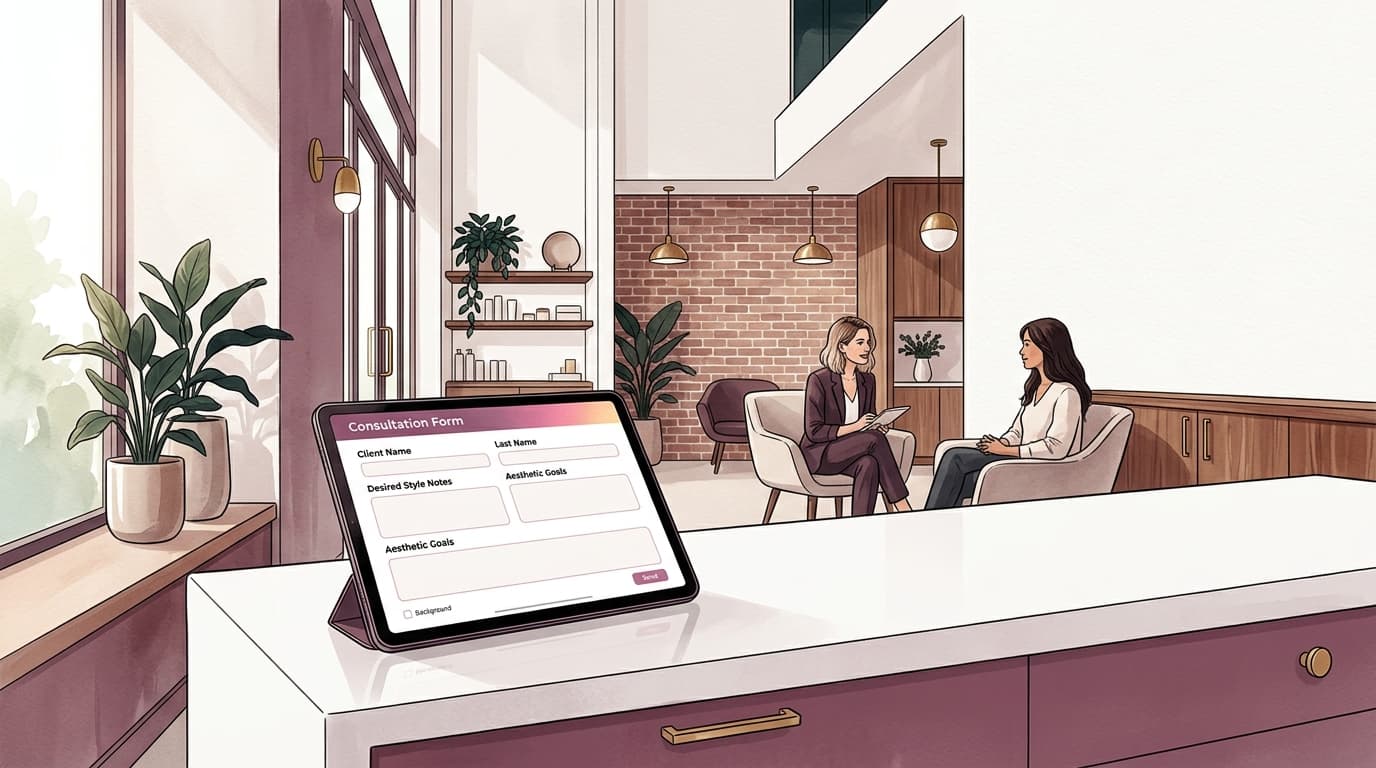
Can you run a day spa from your phone or tablet?
Follow a day-spa guest between reception, therapists and checkout, with clear phone, tablet, shared-device and payment checks.
On this page
Phones and tablets can support day-to-day work in an appointment-led spa, but the useful test is the whole visit: opening the diary, reviewing the client record, handing over to another therapist and completing the right payment.
The device that works at reception may not be the one each therapist needs. A larger tablet can suit shared appointment work, while a phone can keep an individual therapist's next booking close. Neither choice proves that every desktop function or payment method will work on it.
Start with the tasks your team needs to complete, then test those tasks on the actual devices and accounts they will use.
Follow one guest through two treatments#
Use a fictional guest, Alex, who has a massage with Harper followed by a facial with Miriam. Reception needs to see the whole visit. Each therapist needs the relevant service, timing, room and client context. Whoever handles checkout needs an accurate order and remaining balance.
This example does not depend on clinical records or treatment decisions. The handover might include a preference the client has recorded, a relevant note from the first service or a change to the finish time.
A device plan should show where each task happens. Avoid giving everyone access to everything merely because the tablet is shared.
| Stage | Practical device choice to test | What the operator needs to establish |
|---|---|---|
| Reception reviews the visit | Shared staff tablet or computer | Both services, their timing and room requirements are visible. |
| Harper prepares | Personal staff phone or authorised tablet session | The correct appointment, previous visits and relevant completed forms can be opened. |
| Harper records the handover | The same authorised staff session | The note is saved to the correct client or visit. |
| Miriam begins the next part | Her own authorised session | The relevant saved context can be found and the next service is correct. |
| The visit finishes | A supported checkout device | Services, payment already recorded and any eligible redemption agree. |
This is a task plan, not a claim that every system supports every row or that this article reports hands-on device testing.
Check the diary and room together#
A therapist may need only their next appointment. Reception may need to compare several therapists and treatment rooms at once. Test both views rather than judging the product from a single calendar screenshot.
OpenChair documents calendars across web and native mobile, including mobile resource-column grouping for Pro resource scheduling. Room context should be evaluated alongside the service and staff assignment; a room name alone does not tell you whether a changed itinerary still fits.
On a small screen, check how you move between appointments and open the full visit. On a shared tablet, test the view with the number of therapists and rooms you actually manage. An empty demonstration calendar will not reveal whether the day's longer visits remain readable.
For the two-treatment example, ask reception to find Alex's next service and its room without relying on a separate message from Harper. That is a more useful test than whether the tablet displays a miniature version of the desktop page.
Keep the handover in the client record#
Before the appointment, Harper should be able to find the relevant recorded context without searching through an unrelated message thread. Before the facial, Miriam should know where to review the information that belongs to Alex's visit.
Use specific, factual notes. “Client asked for a quieter room next time” is clearer than a vague label that another therapist must interpret. Keep observations and client requests distinct, and record only what the spa needs for the service and future handover.
OpenChair's Customer Profiles connect visit history and recorded client context. Its Pro Consultation Forms provide signed submissions and a consent archive. A booked appointment and a completed form are different records, so staff should check the relevant submission rather than assume confirmation means the form has been finished.
In a trial, save a fictional note on one device, then open the same client from another authorised account. Confirm the saved result is visible before relying on the handover. Do not assume that typing into an editor is the same as saving, or that every screen refreshes immediately.
These are administrative and client-context tasks. The presence of a form or note does not establish clinical record capability, treatment suitability or health-fund functionality.
A shared tablet still needs an identified operator#
Sharing a device should not mean that every action is recorded under the owner's identity.
Agree how a staff member starts their authorised session and how they leave it when handing the tablet over. Check which appointment actions the role permits and which financial or management functions remain restricted.
OpenChair has shared-device and role-based access capabilities, but a staff workstation is separate from a customer-facing kiosk or form session. Test the configured mode you intend to use. Do not treat a tablet showing a form as proof that the rest of the owner's account is protected from view.
For Alex's visit, reception might use the shared workstation to review the itinerary while Harper uses a personal staff account to prepare. Miriam should use her own authorised access for the handover, not continue in Harper's unattended session.
The operational habit matters too. Place shared devices where staff can use them without exposing another client's record, and lock or exit the session before the device changes hands.
Distinguish using a service from editing the catalogue#
Running the day and configuring the business are different jobs. A phone may support selecting a service that an owner needs a larger surface to create or edit.
OpenChair's Bookable Service Combos guide gives a concrete example: an operator can select a visible combo while creating a booking on a phone, but combo creation and management use web or the native tablet catalogue workspace.
That is a useful limitation to plan around. Reception may book Alex's existing massage-and-facial offer on a phone without expecting to rebuild the offer there.
The same test applies to booking changes. Use the supported appointment action, inspect the resulting service order and room requirements, then reopen the saved visit. Do not assume a compact calendar interaction has the same controls as every desktop editor.
Separate checkout from contactless payment hardware#
Completing an order on a tablet and accepting a contactless card directly on that tablet are not the same capability.
OpenChair's checkout guide distinguishes cash, external-card recording, supported readers and Tap to Pay. Tap to Pay requires a compatible supported phone and payment setup. Do not assume an iPad provides phone-based Tap to Pay merely because it can open checkout.
Decide how the spa will take payment before buying hardware. A shared tablet with a compatible reader is a different arrangement from a therapist's compatible phone. Recording a payment taken on a separate EFTPOS terminal is different again.
For Alex, inspect the services delivered and the payment already recorded. Test package or voucher redemption separately before combining several payment arrangements. Make sure the person who processes the order is not confused with the therapist who performed each service.
Do not infer payroll or automatic therapist payouts from a checkout or commission report. Those are different business functions with their own requirements.
Use a source-led device check, then try the actual build#
The following OpenChair distinctions are documented in the product sources reviewed for this article. They are not a substitute for testing your installed version, operating system, account and hardware.
| Task | Documented distinction | What to test in your spa |
|---|---|---|
| Review calendar and resources | Native calendar includes resource grouping; resource scheduling is Pro. | Your team and room layout on the actual phone and tablet. |
| Open forms and client context | Shared client records and mobile form surfaces are documented. | Relevant submissions, role access and saved handover notes. |
| Book an existing service combo | Operators can select a visible combo on phone. | The complete service order and resulting appointment. |
| Manage service combos | Web and native tablet support catalogue management; phone does not. | The owner's real catalogue task, including edits. |
| Take a contactless payment | Compatible phone Tap to Pay and supported reader arrangements are separate. | The exact device, payment readiness and reader combination. |
Use the installed version available to your venue when checking the iPad layout. Do not buy devices around a particular panel arrangement until you have seen that version perform the task. A promotional screenshot is not a substitute for trying the booking change yourself.
Plan for a device or connection problem#
Test what happens when an action does not finish as expected. A saved note, a booking change and a payment each need a clear outcome.
Do not assume that an app works offline because it is native. For any offline feature, establish which actions it supports, where pending work appears and when the server confirms the result.
After an uncertain payment result, inspect the existing payment state before trying again. A screen that has not refreshed is not proof that the client was not charged. Use the supported recovery process rather than creating a second payment to make the screen look complete.
Keep a practical alternative available for the working day, such as another authorised device and a documented process for unresolved actions. That is more useful than assuming every staff phone will always be charged, connected and ready.
Bring the two-treatment example to an OpenChair Wellness evaluation. Follow it through the devices your team will use, including the handover and payment outcome, before deciding which hardware belongs in each room.